Reporting, Insights, and Trends
Create and view reports related to your grant proposals, grant reports, funders, clients, or tasks
Use the Reporting feature to create reports on your grant status, to share with your Board, or Leadership. You'll be able to generate typical reports for leadership, such as your grant status, amount, and more, plus view additional insights on your grant overview and grant trends over time.
📽️ How to Create Reports in Grant Frog
Create and View Reports
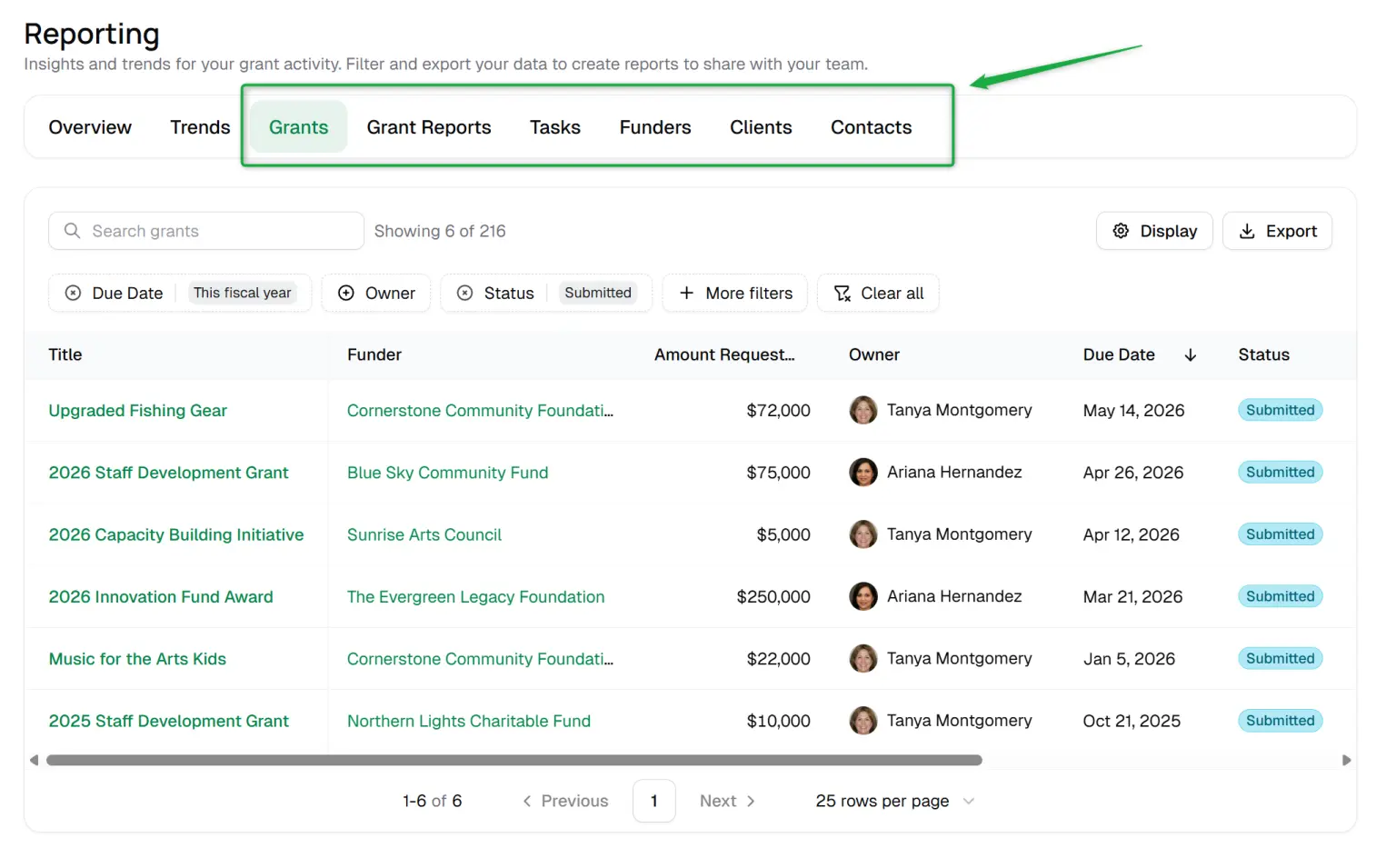
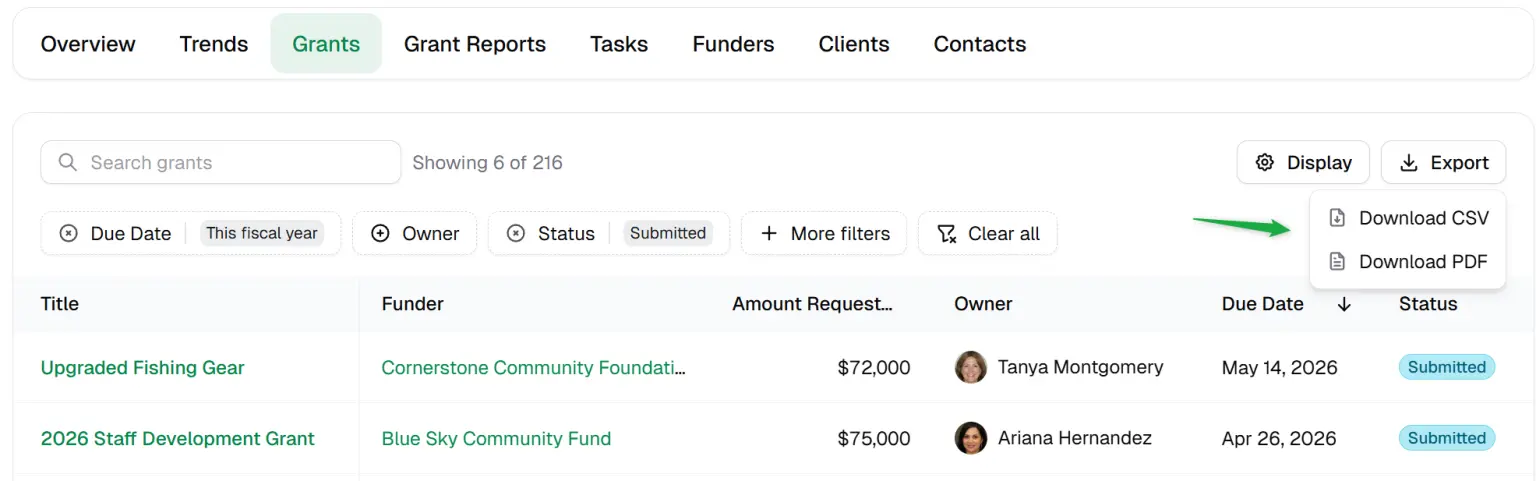
The Reports page is separated into various reports. The most common reports you'll likely create are in Reporting > Grants tab.
These reports allow you to filter on your due dates, dates submitted, status, users, or any other filters you need.
You can view and export information related to your Grant Proposals, Grant Reports, Funders, Tasks, and Clients.
Click Reporting in the menu
Click Grants
Common Reports You Might Need
Grants
Grants Submitted for a certain date range (this fiscal year, last 3 months, etc)
Grants Pipeline for this fiscal year - any grant status with amount for this fiscal year - submitted, open, awarded, etc.
Grants by User for a certain date range
Grant Due Dates for next 90 days
Grant Reports
Grant Report Due Dates for next 90 days
Grant Reports by User
Tasks
Tasks due this month
Tasks due for a User
Tasks Completed last month
Funders
Funder Type - private foundation, corporate foundation, federal, etc.
Funder Grants Awarded Amount
Funder custom tags
Filter Your Reports
For each report, you can apply Filters to see and export the data you need. Each category - grant proposals, grant reports, funders, tasks, and clients - have specific filters related to the data.
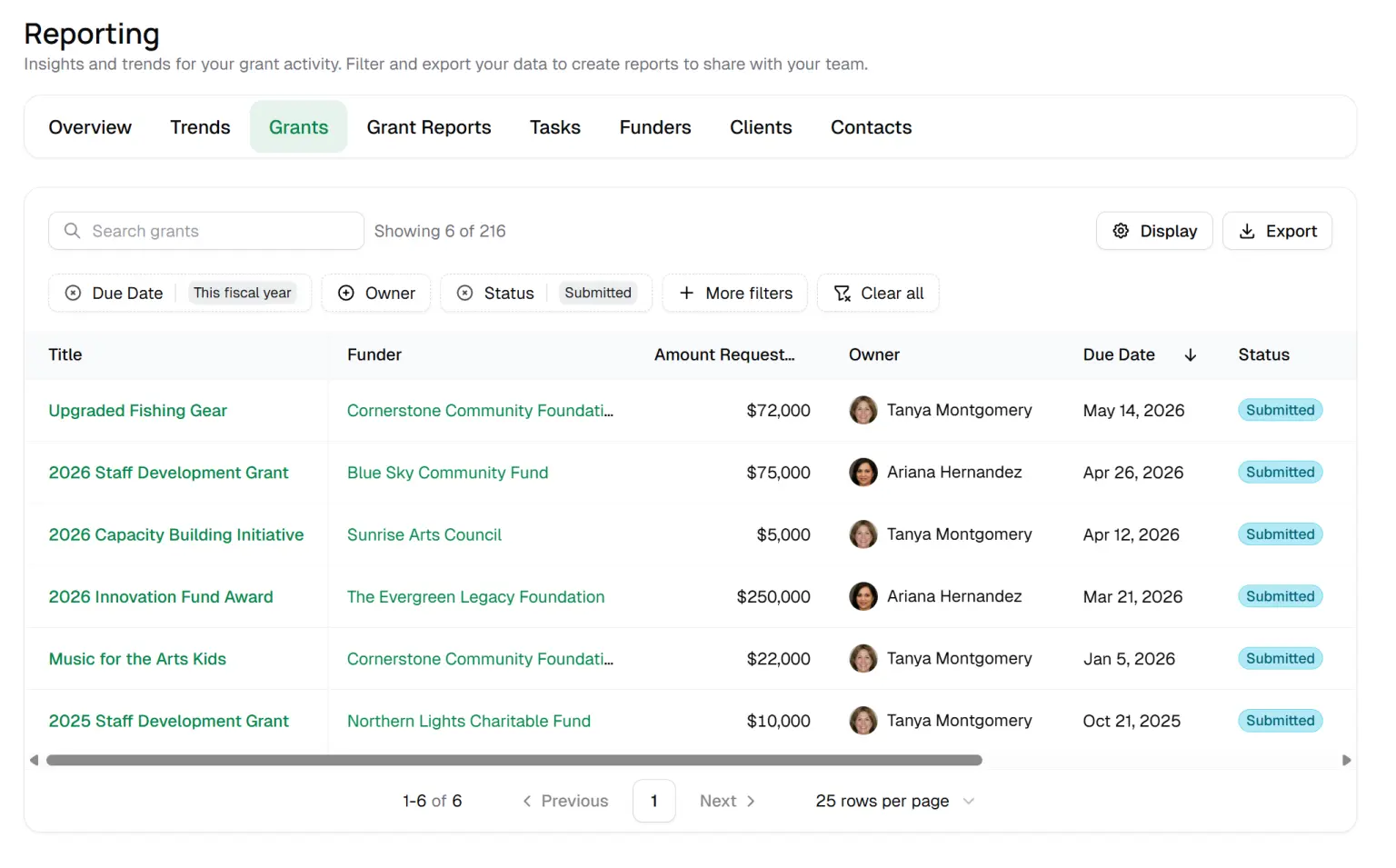
This can include Dates, Status, Client, and more depending on the specific Report.
Choose your Filter and the value of the Filter
Example: Choose the Status filter, then choose the status 'In Progress'
Choose the Due Date status and choose 'This Fiscal Year'
Export Your Report
Once you have chosen your Report and Filters, click Export
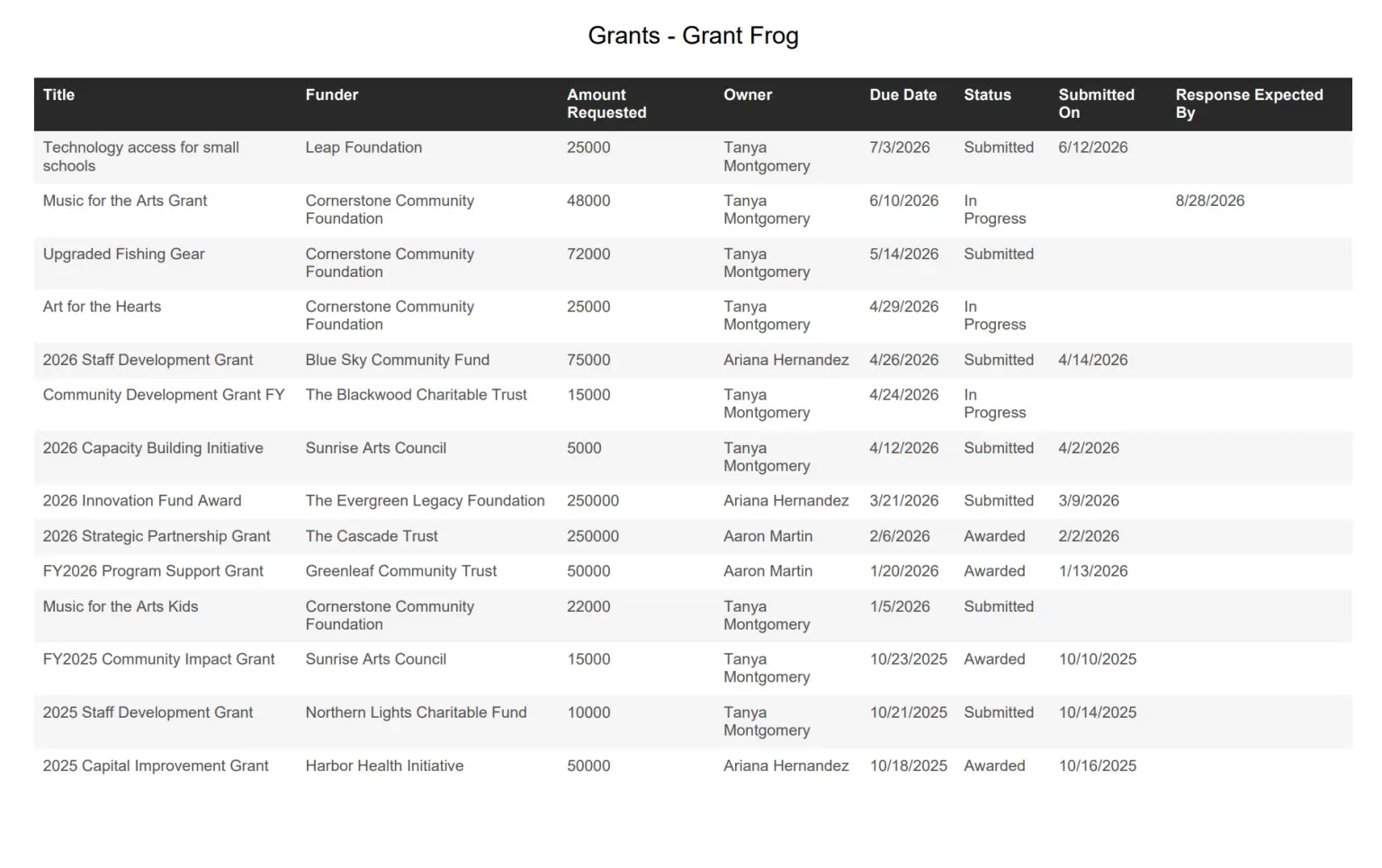
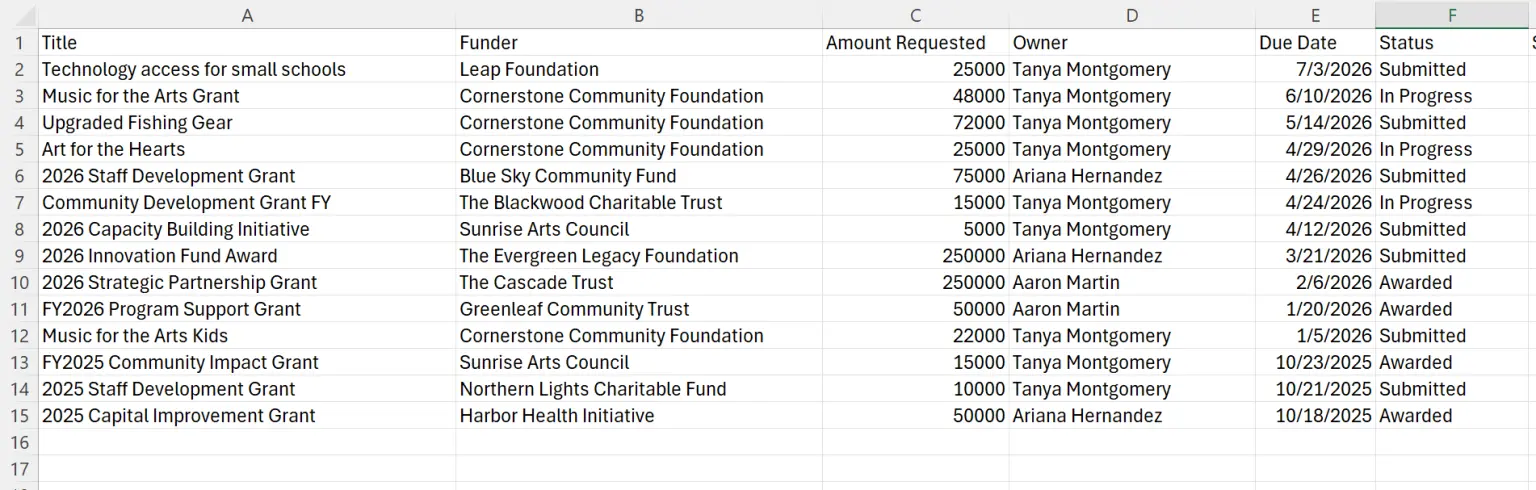
You'll be able to choose a PDF or CSV file
PDF Export
CSV Export
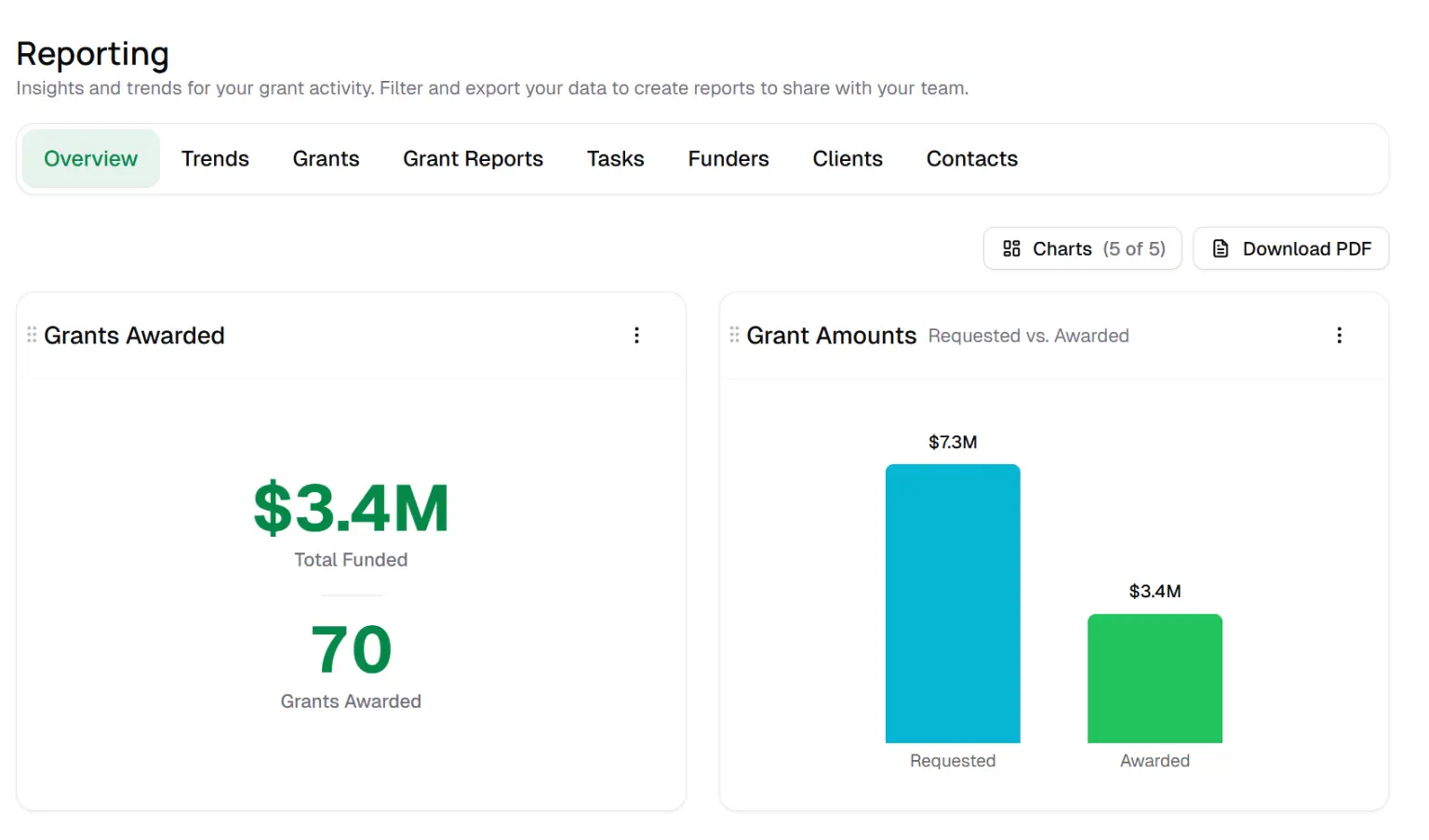
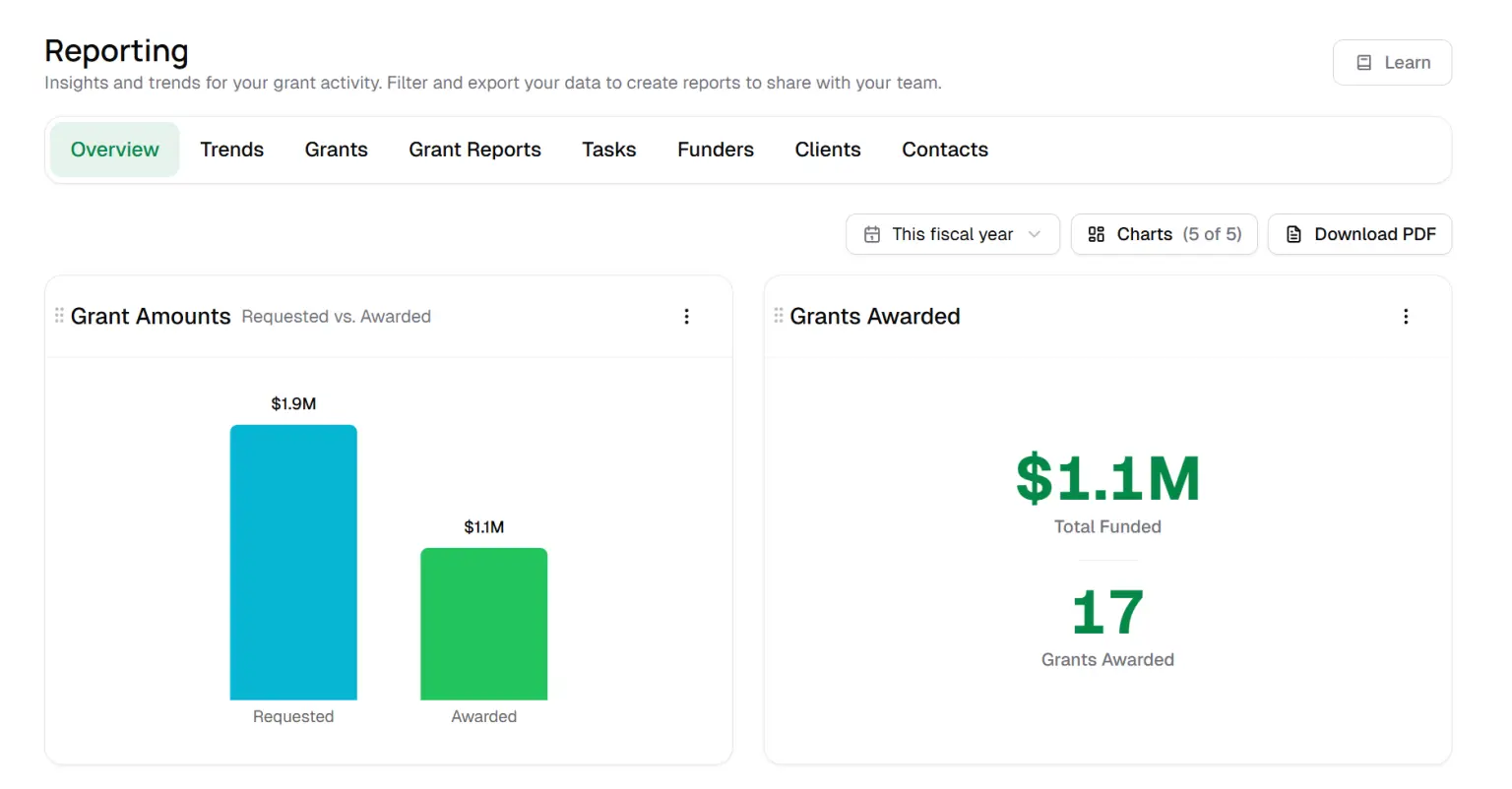
Overview Charts
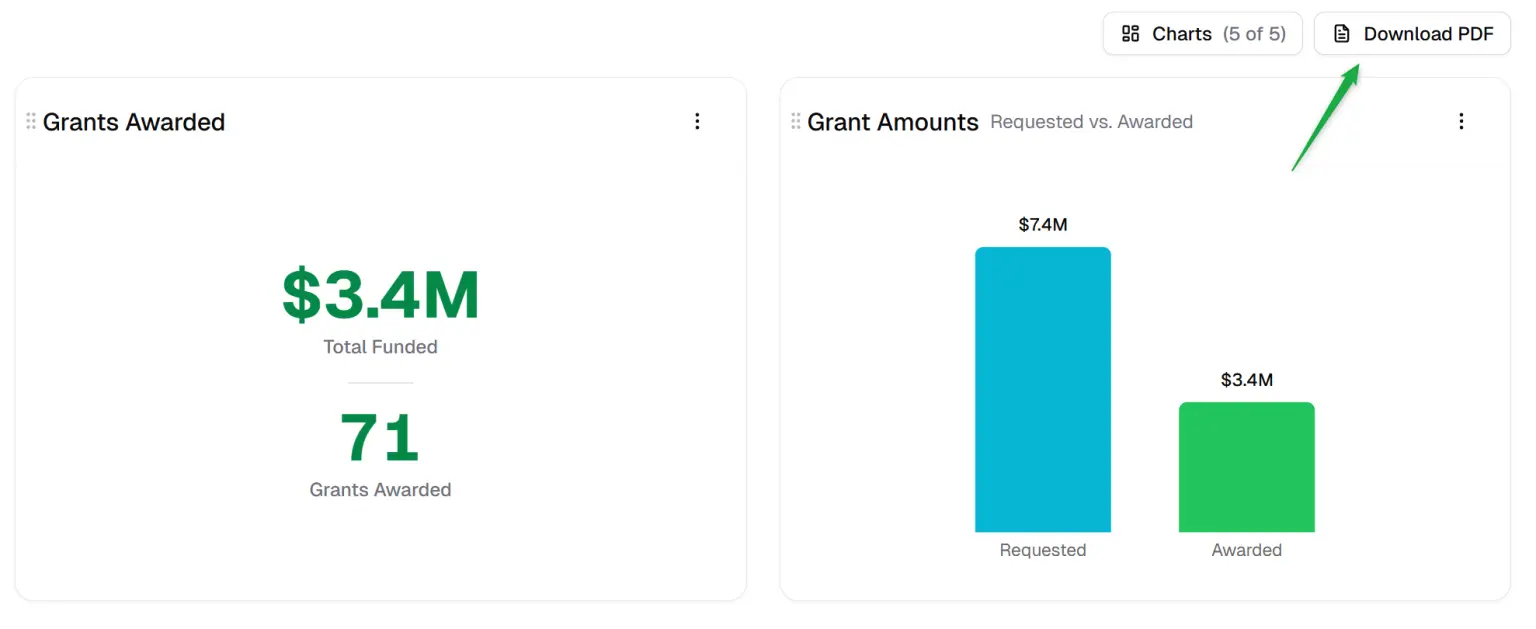
You can also view or download visuals and charts of your Grants Overview like Grants Awarded, Grants Rested vs. Awarded, Grant Statuses and more.
Choose Date filters
Select or deselect Charts you want to see with the Charts menu
Download your Charts as a PDF
Resize, Rearrange, Hide or Display Charts
You can rearrange these charts in any order by grabbing the left handle on the card. You can also display or hide the ones most relevant to you.
Click the Charts dropdown and check or uncheck the chart you want to display/hide
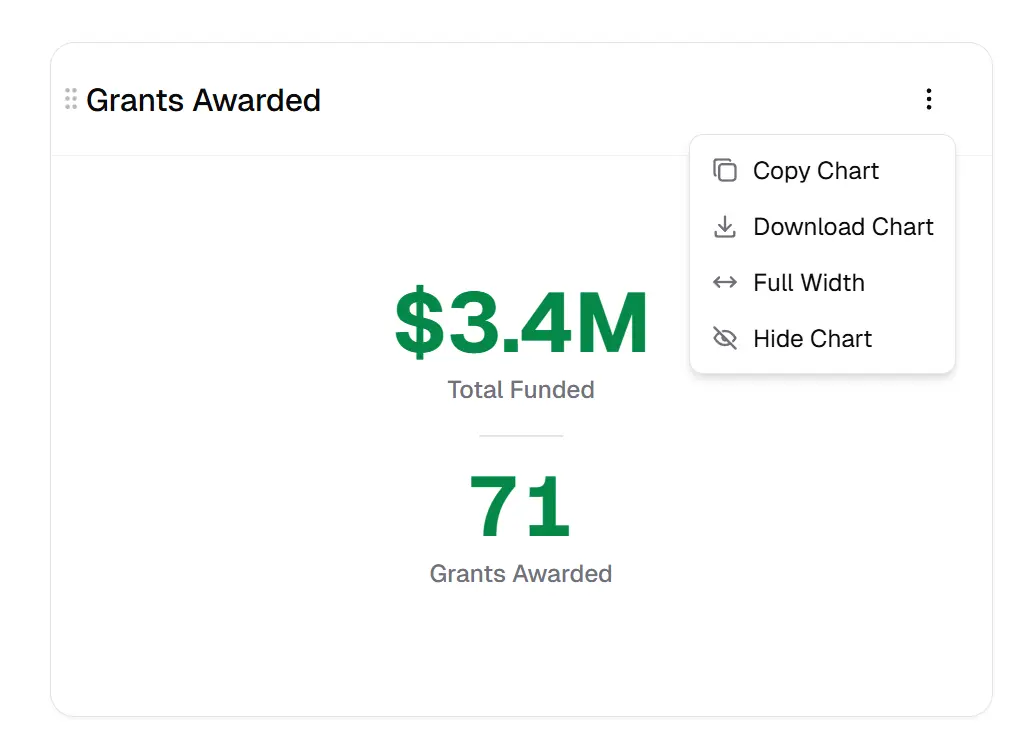
Download Overview Charts
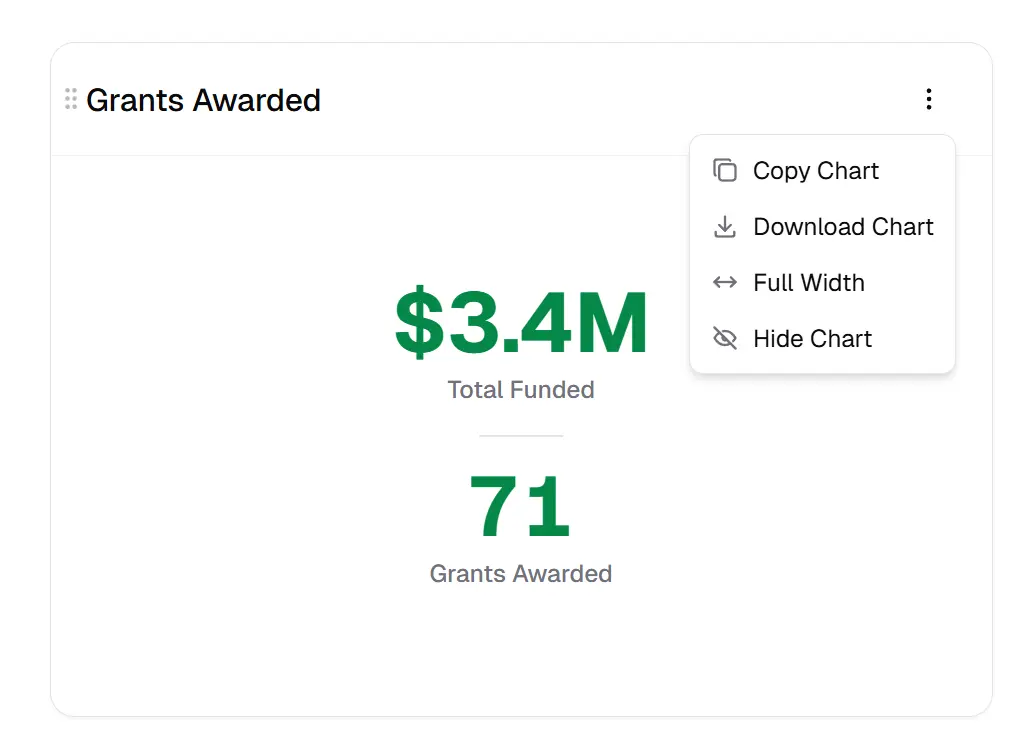
You can download the entire Overview page with Charts or you can download each one individually.
Click the small menu in the the top right and choose Download Chart
To download the whole page, click Download PDF in the top right
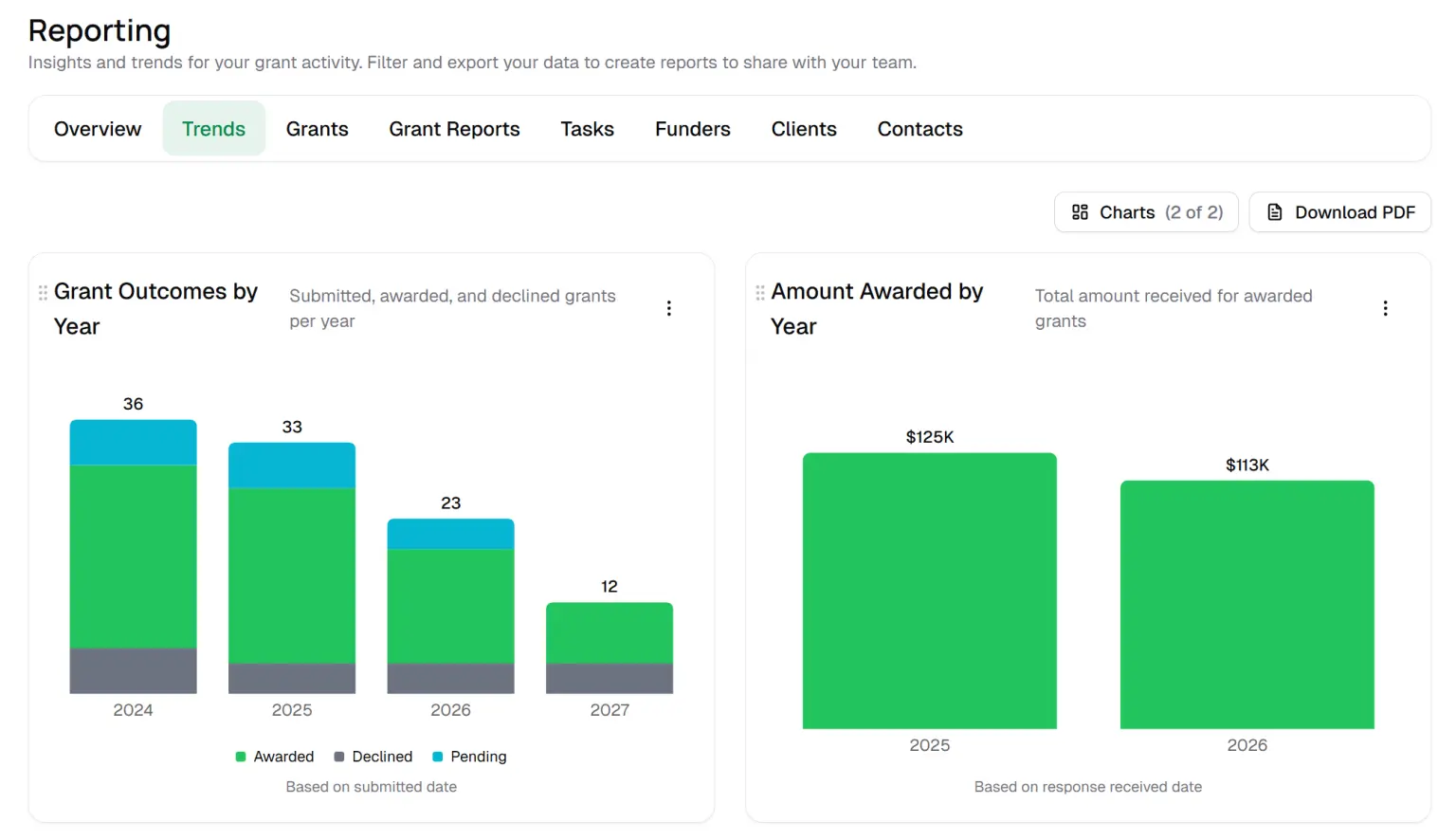
Trends
You can view your grant overview trends from multiple years.
You can download the entire Trends page with Charts or you can download each one individually.
Click the small menu in the the top right and choose Download Chart
To download the whole page, click Download PDF in the top right