Migrate from GrantHub
We provide fast, full-service white-glove data migration from GrantHub into Grant Frog
We will migrate your data from GrantHub into Grant Frog. We provide a fast, full-service migration process to help you and your team get started!
Migrate into Grant Frog
You'll reach out to us via the Support chat and let us know you need a migration
We can login to your GrantHub and export your files (RECOMMENDED) or you can send the files exactly as listed below to us
We'll migrate everything for you into your account!
How a Data Migration Works at Grant Frog
A migration takes 3-5 business days from the time we start your migration - if we can be quicker, we will!
Once we have all of your files, you'll need to stop using your existing system or files
Temporarily track any grant updates or changes in a spreadsheet or document until the migration is completed
We'll review all the files and note any questions we may have for you
We'll work together with you to make sure data is updated and ready for import
We migrate the data into your organization's Grant Frog account
You do a final review
We help you get started in Grant Frog!
Files to Export from GrantHub
You will need 4 files. See below how to export each one. You'll need to export them as listed below, not a full Export All file.
Opportunities
Funders
Funder Contacts
Tasks
Currently, Grant Frog does not support document storage so you'll need to store those in your storage drive. If you have files in the Answer Library, export those and store in your storage drive.
We do not need the Deadlines CSV as all the data for deadlines is included in the other files.
How to Export Data from GrantHub - 4 Files
You will go to each page and choose Excel/CSV to export as a CSV file.
1. Funders AND Funder Contacts - 2 files
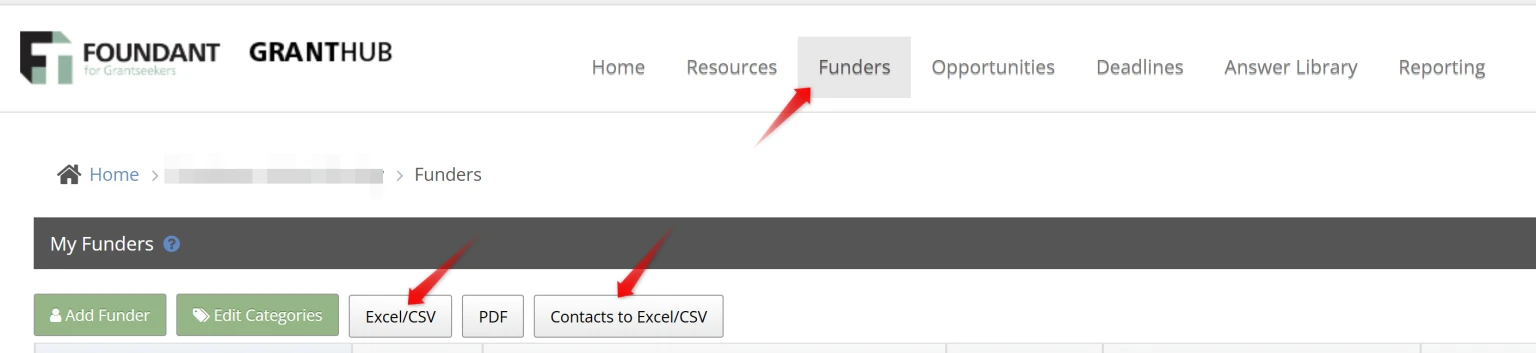
On the Funder page, you'll export the Funders AND Contacts (2 files total from this page)
Click Excel/CSV for the Funders file.
On that same page, click Contacts to Excel/CSV for the Contacts file.
2. Opportunities - 1 file
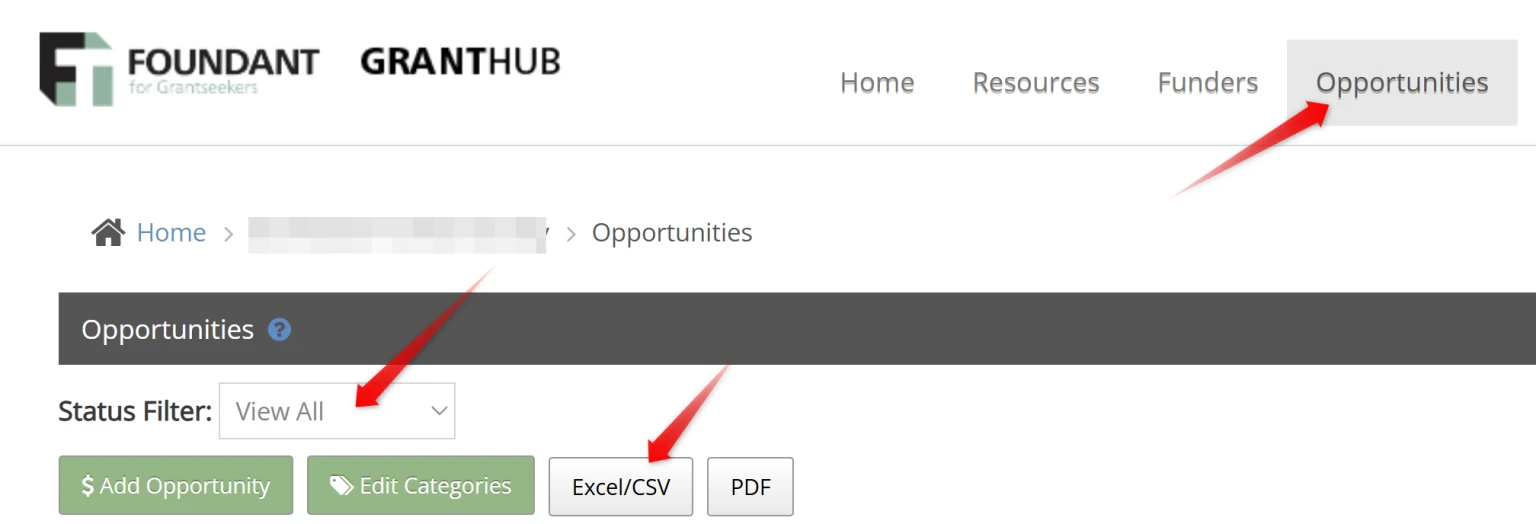
On the Opportunities page, click View All in the Filter
Then, click Excel/CSV
3. Tasks - 1 file
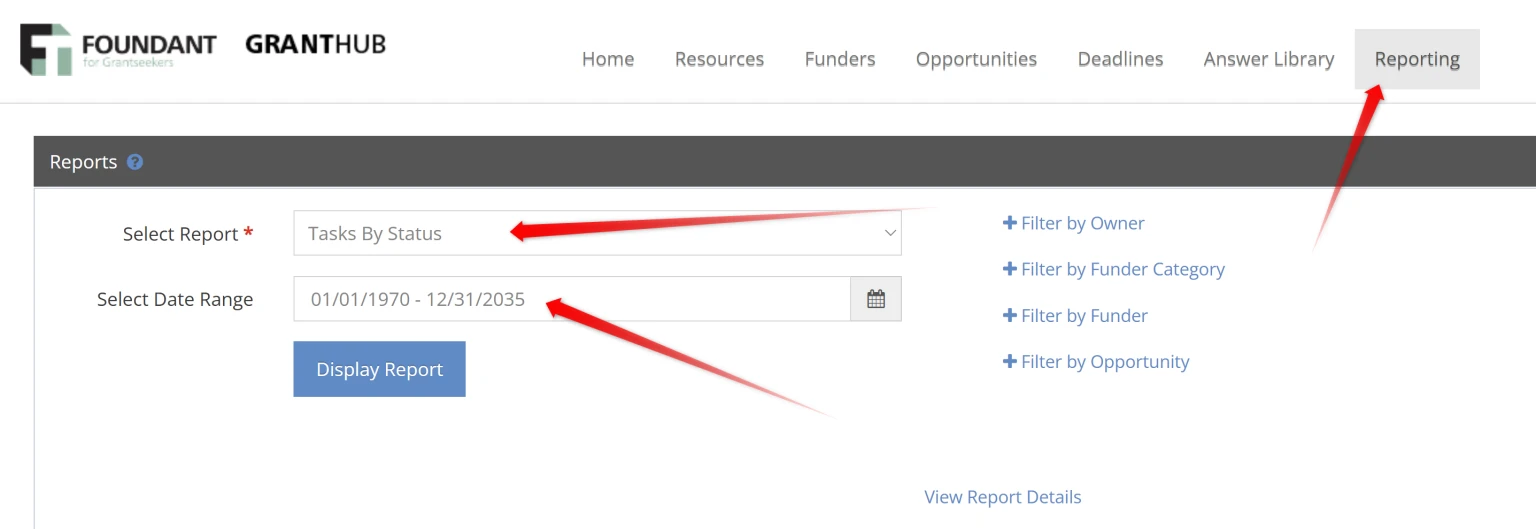
To export Tasks, click Reporting in the top menu
Choose Tasks by Status as the Report
Choose the Date Range as far back and as far ahead as needed - we typically do from 1970 to 2035. If you have more, be sure to include those dates.
Scroll down until you see the Report Details list, then click Excel/CSV
For Your Storage Drive - Answer Library
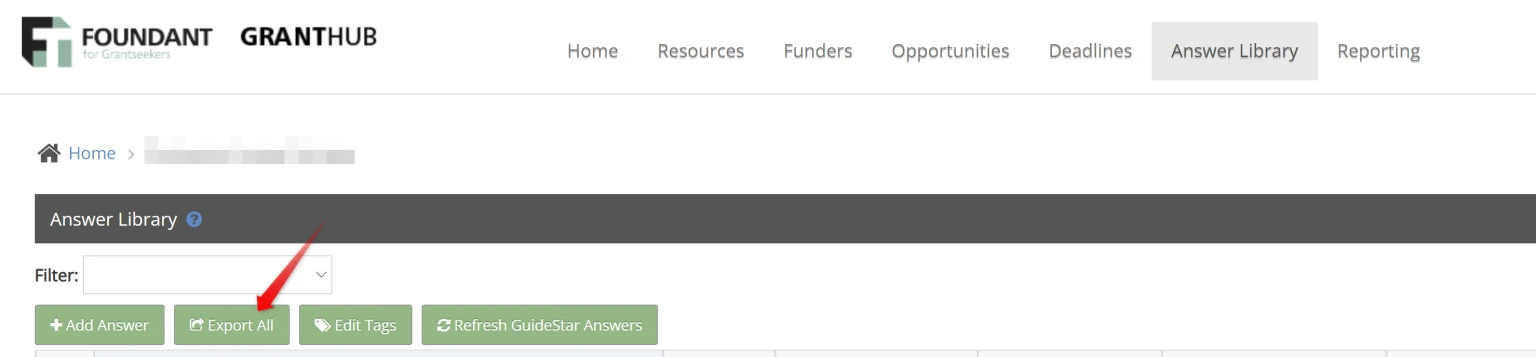
Currently, Grant Frog does not support document storage so you'll need to store those in your storage drive. If you have files in the Answer Library, export those and store in your storage drive.
Click Answer Library in the menu, then choose Export All
Save to your storage drive