Calendar Integration - Google, Outlook, Apple
Integrate and display your Grant Frog grants, grant reports, and tasks on your Outlook, Google, or Apple calendar
Integrate and display your Grant Frog grants, grant reports, and tasks on your Outlook, Google, or Apple calendar.
For the built-in Calendar View in Grant Frog, view Calendar (Built-In)
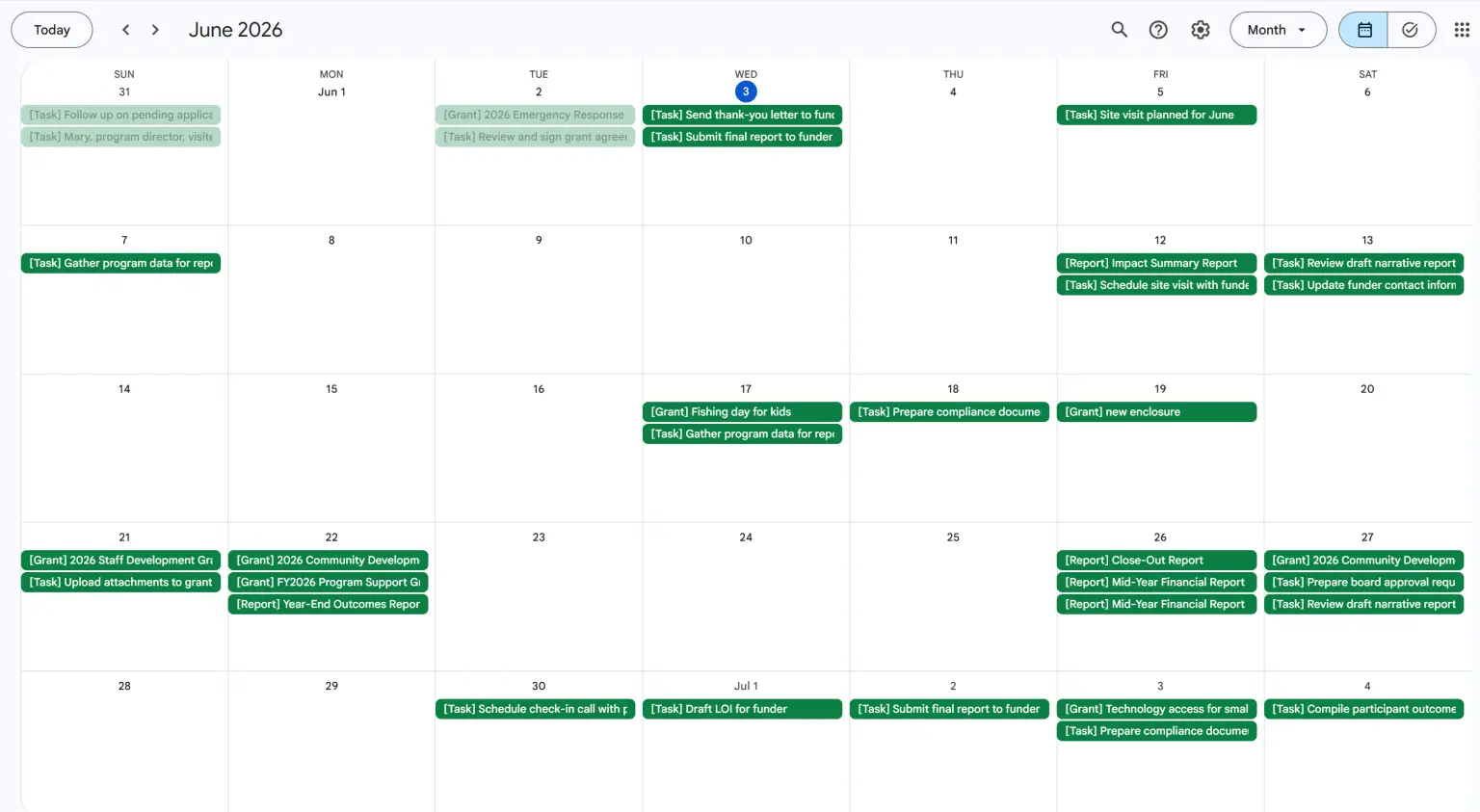
You can choose to display your grants, grant reports, tasks or all options on your own calendar. You can create multiple calendars for you or to share with anyone on your team.
How to Integrate Grant Frog and Your Calendar
Please note this is a 1-way sync - Only changes made inside Grant Frog will update to your Calendar. Any updates made from your Calendar app will NOT update Grant Frog.
In Grant Frog:
Go to your Settings on the menu, then choose Calendar
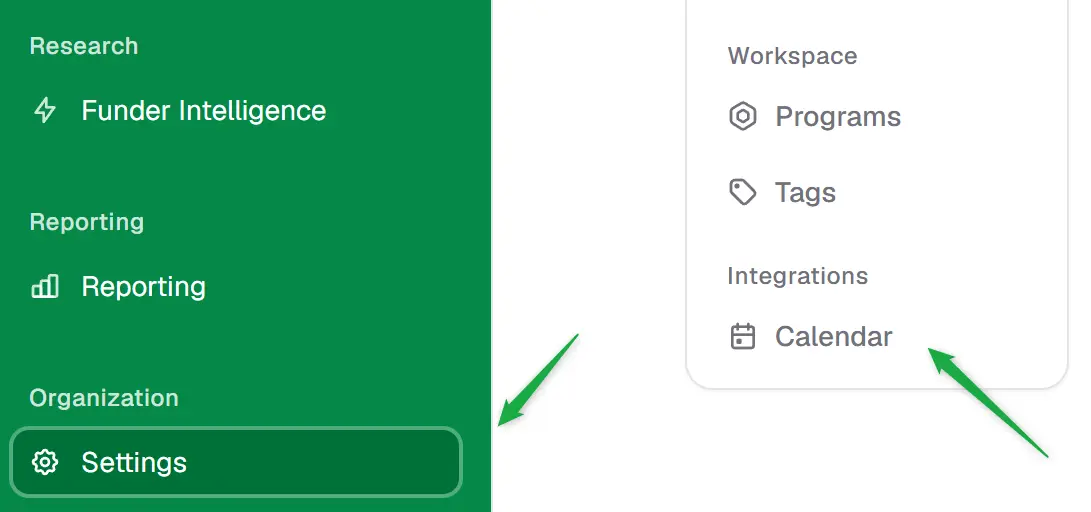
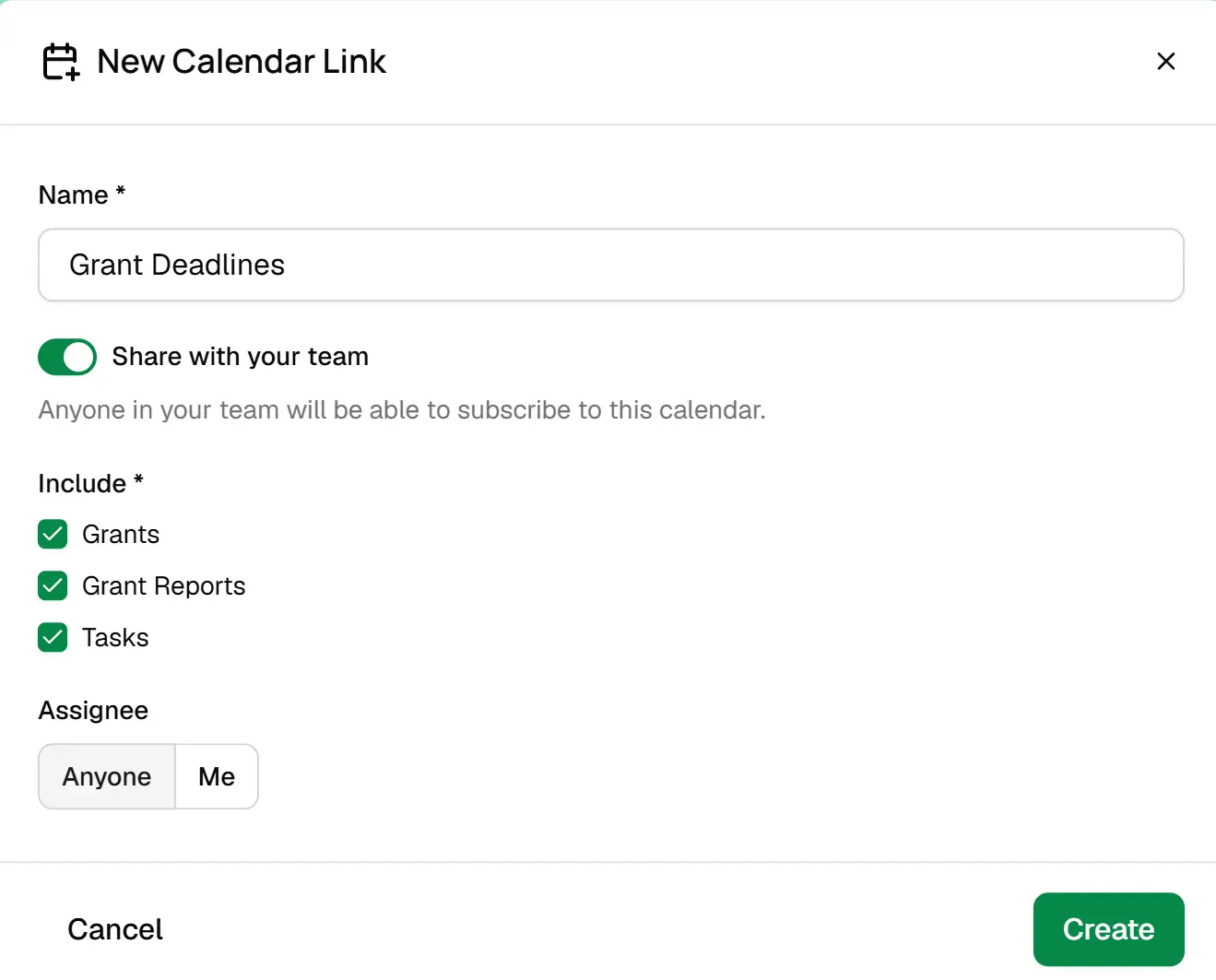
Click New Calendar Link
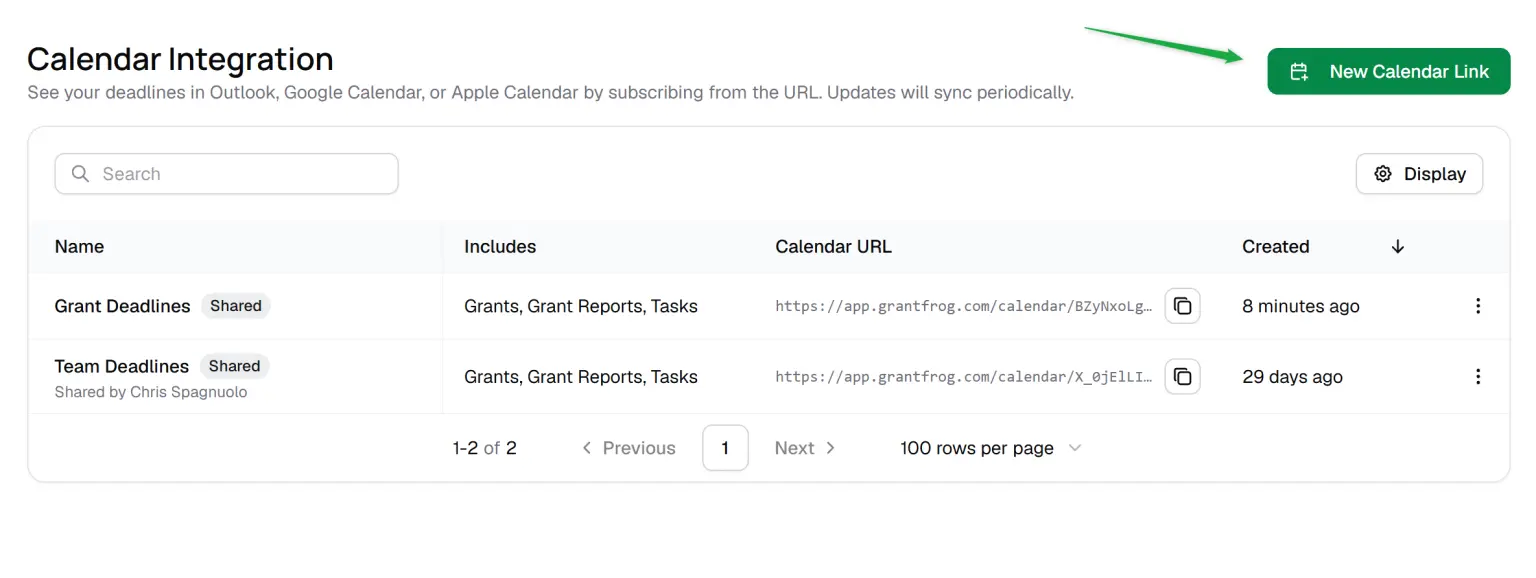 3. You now have several options for your Calendar:
a. Name your Calendar
b. Choose if you want to Share the calendar with your team (they can subscribe to it on their calendar as well)
c. Choose what types of Deadlines you want on your calendar - Grants, Grant Reports, Tasks, or all
d. Choose if you want to see only your Deadlines or deadlines for Anyone on the team.
Click Create
Copy your Calendar URL, then follow the instructions below to add the calendar to your preferred calendar app - Outlook, Google, or Apple
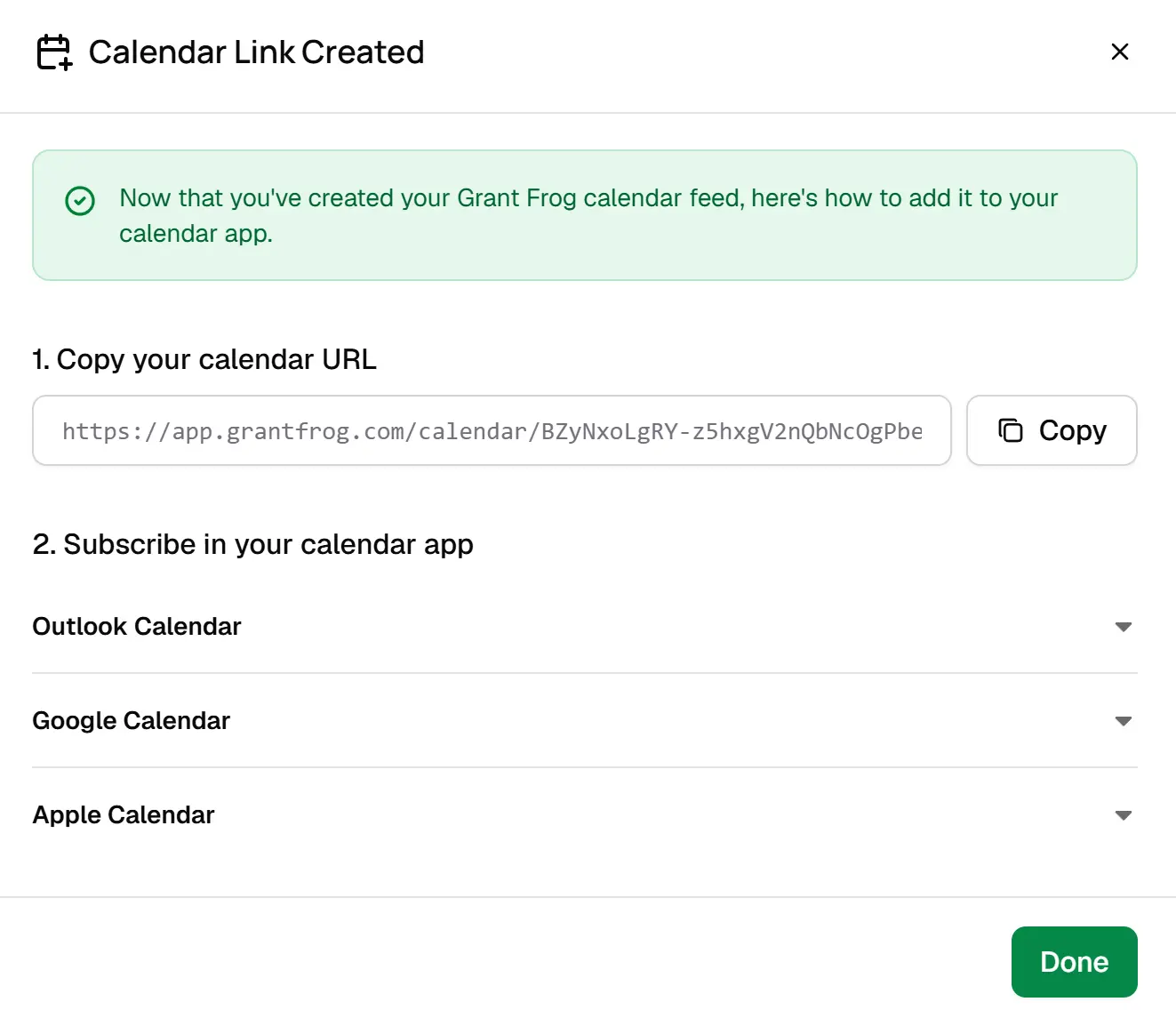
Integrate Outlook Calendar with Grant Frog
Open Outlook Calendar.
Select your calendar in the menu.
Click Add Calendar.
Click Subscribe from web.
Paste the calendar URL from above.
Give the calendar a name. You can also select a calendar color and icon.
Click Import.
Integrate Google Calendar with Grant Frog
Open Google Calendar.
Find the Other calendars section on the left side.
Click the plus icon below My Calendars.
Select From URL and follow the on-screen instructions to add the new calendar.
Integrate Apple Calendar with Grant Frog
Open the Apple Calendar app.
Click File at the top.
Select New Calendar Subscription.
Paste the calendar URL you copied above.
Click Subscribe.
Select the Auto-refresh rate.
Select OK.
Unsubscribe and Delete from Your Calendar
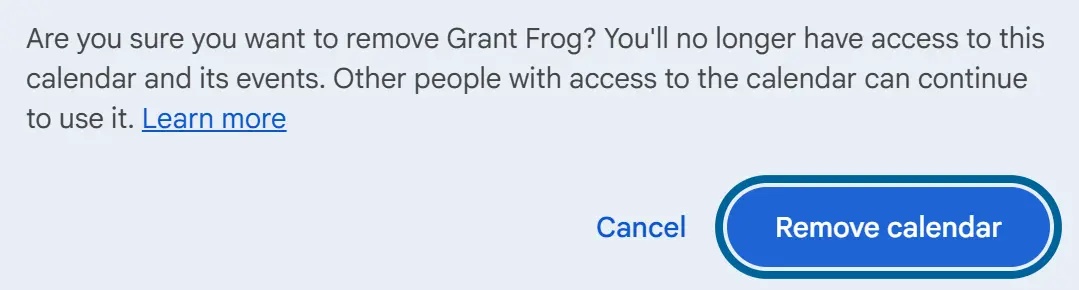
You can delete and unsubscribe from calendars through Grant Frog and your calendar app.
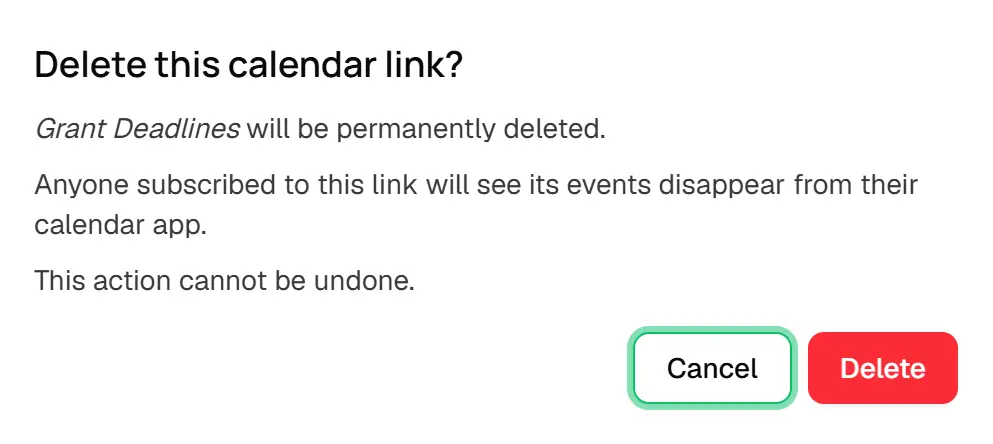
Delete the calendar connection in Grant Frog by clicking the 3 dot menu on the calendar you need to delete
Click Delete
Unsubscribe and Delete the Calendar from Your Calendar app
Delete from Grant Frog
Delete from your calendar app